


Computer Screens for Every User: Features, Sizes, and Tips
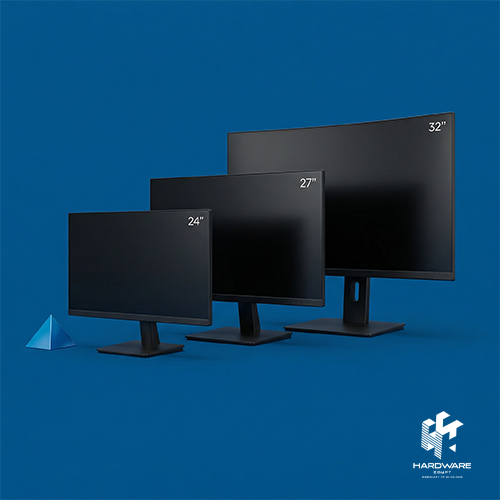
As we all know, computers are one of the main office setups for many businesses in many fields over the past few years. To have a fully functioning computer, it has to be associated with a good computer screen. Because the quality of your screen directly affects comfort, productivity, and eye health.
Different users also have different needs. Office workers often look for clear visuals and eye‑comfort features. Gamers consider refresh rates and response time. Designers focus on color accuracy and resolution. Light users simply want a screen for browsing, streaming, and light tasks. Although the purposes are different, they have the same goal in finding the computer screens that are comfortable and wide.
Types of Computer Screens
LCD vs LED vs OLED: What is the difference?
- LCD (Liquid Crystal Display):
They are the classic screens and the most affordable ones. They deliver a good quality visual and work well with those who do simple tasks. They are somehow good, but colors may not be as good as newer screens nowadays. - LED (Light Emitting Diode)
LED screens are an upgraded version of LCDs. It works by allowing LED backlighting to make the colors look brighter, higher-quality, and more energy-efficient. - OLED (Organic Light Emitting Diode)
OLED is the most upgraded one compared to the two previous screens. Each pixel produces light rays on its own, which creates balanced and rich colors. These screens are tailored for designers, video editors, and high‑end gamers. They are usually more expensive if the visual quality is crucial.
Curved vs. Flat Screens: Which One Feels Better?
– Flat Screens:
Flat computer screens are the standard option. They are practical, affordable, and fit easily into any setup. If you just want something simple and effective, flat screens are suitable.
-Curved Screens:
Curved screens are designed to wrap your vision in front of the computer. This creates a more deep feeling, especially for gaming. They can also reduce eye strain for those who sit during long hours.
Touchscreen Computer Screens: When Do They Make Sense?
Touchscreen computer screens are a new feature that has been installed with many brands. They are great for designers who sketch digitally, business presentations, educational material, and interactive workspaces. They also suit users who prefer touching the screen instead of using a mouse.
Key Features to Consider
Here are the some things to look at before making a decision:
Resolution: How Sharp Should It Be?
Resolution determines how clear the visuals look on your screen. Common resolutions include:
- Full HD (1920×1080): Perfect for many activities and the general resolution today. Affordable and available everywhere.
- 4K (3840×2160): suits the designers, video editors, and anyone who wants to see sharper images and more widescreen space.
- 8K (7680×4320): The highest resolutions of the previous screens. It is not available in as many stores as the other screens and is expensive. Best for professional creators or high-end gaming activities.
Refresh Rate: Smoothness Matters
The refresh rate determines how many times the screen updates per second. They include 60Hz, 120Hz, 144Hz, etc…
- 60Hz: Good for regular work or browsing.
- 120Hz–144Hz+: Perfect for gamers and video editing that needs a motion that is fast and has reduced blur.
Response Time: Speed for Action
Response time measures how quickly a pixel changes color, usually in milliseconds (ms). Lower numbers mean less motion blur.
- High response time (slow): fit best for office tasks or general use.
- Low response time (fast): Crucial for gamers and designers who need exact and smooth visuals.
Screen Size & Aspect Ratio: Fit Your Space
The right size means you get comfort and productivity.
- Small screens (21–24 inches): suitable for simple computer activities.
- Medium screens (25–32 inches): Great for much office work, gaming, and entertainment.
- Large screens (34 inches+ or ultrawide): Perfect for those who work in deep gaming fields or big creative projects.
Best Computer Screens for Different Users
Here is a quick guide to help you match the computer screen to your needs:
For Gamers: Smooth, Fast, and Immersive
Gamers need screens that keep up with every move, action, and detail. Look for:
- High refresh rate: (120 Hz, 144 Hz, or higher) for smooth and fast motion.
- Low response time (1–5 ms) to reduce blur.
- Optional features: Curved screens or RGB lighting for a deep screen setup.
For Professionals: Precision and Productivity
Designers, video editors, and anyone who works with visuals should focus on:
- Color accuracy: Choose screens that show colors in as high a quality as possible.
- Larger monitors: More space means smoother workflow and fewer window switches.
- High resolution: 4K or higher. Focus on delivering every detail is visible and rich.
For Students & General Users: Simple, Affordable, and Durable
For daily tasks:
- Affordable options: Full HD LED screens are usually suitable.
- Durable design: You want a screen that lasts for a longer time.
- Moderate size: 21–27 inches fits most spaces.
How to Maintain Your Computer Screens
Cleaning Tips and Safety Measures:
- Use a soft cloth to avoid scratching the screen.
- Gentle cleaning solutions: use a small cloth and put a little bit of water and clean gently.
- Power off first: to avoid damage.
Preventing screen burn-in and dead pixels:
- Do not leave static images on too long: Leaving the same image on your screen for hours can cause burn-in over time.
- Use screen savers or sleep mode: Letting your monitor rest keeps it functioning well.
- Check for dead pixels early: If you notice any dead pixels, reach out immediately to solve any problem.
Extending the Life of Your Monitor:
- Keep it cool: Heating it too much can shorten the life of the screen.
- Adjust the brightness: Avoid keeping your monitor too bright for long times.
- Handle with care: Avoid tapping or moving the screen roughly.
To sum it all up, computer screens are a core part of a computer setup. It has different types such as LCD, LED, and OLED. In addition to considering features such as resolution, refresh rate, response time, and screen size. Every person has a different need for computer screens and we have stated which works for who in terms of everything
Take the time to list your daily tasks and creative projects before making a decision to buy.
Ready to explore which screen suits you the best?
Contact us now and compare many options to ensure comfort, efficiency, and a great digital experience.