


Best Gaming Monitors in Egypt: How to Choose the Right Computer Screen
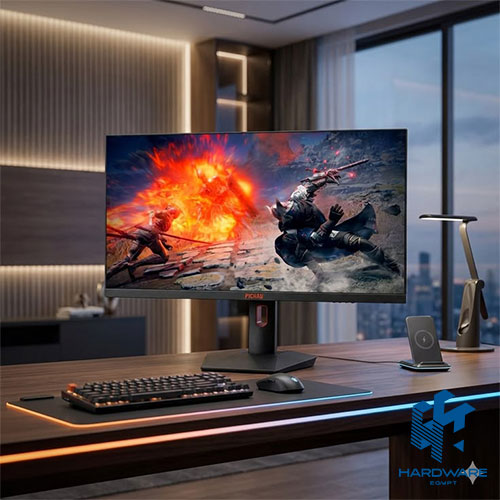
The best gaming monitors are not always the largest screens or the models with the highest refresh rate. The right monitor should match your games, graphics card, target resolution, available desk space, and any additional work you plan to do.
Competitive players often benefit from fast 144Hz, 180Hz, or 240Hz screens. Players who prefer story-driven and visually detailed games may care more about QHD or 4K resolution, strong contrast, accurate colors, and HDR support.
Anyone comparing computer screen Egypt options should look beyond the listed price. Screen size, panel type, response time, adaptive sync, ports, stand adjustment, warranty, and current availability all affect the value of the monitor.
A Dell touchscreen computer serves a different purpose. It may describe a Dell All-in-One desktop with an integrated touchscreen or a separate touch-enabled monitor. Touch input can be useful for reception desks, education, presentations, retail, and collaborative work, but it does not automatically make a screen suitable for gaming.
Before choosing a display, decide whether you need:
- A fast monitor for competitive gaming
- A high-resolution monitor for immersive games
- A screen for both gaming and work
- A separate touchscreen monitor
- An All-in-One touchscreen computer
- A standard office monitor at a lower price
Prices last reviewed: July 26, 2026. All figures should be treated as planning examples. Stock, promotions, exchange rates, warranty terms, and retailer updates may change the final price.
What Makes a Gaming Monitor Worth Buying?
The best gaming monitors balance speed, image quality, and compatibility. Paying for the highest specification in one area does not guarantee the best overall experience.
For example, a 360Hz Full HD monitor may suit an esports player using a powerful gaming PC. A user who mainly plays open-world or cinematic games may prefer a 27-inch QHD or 32-inch 4K screen, even if its refresh rate is lower.
| Gaming Priority | Suitable Direction | Features to Prioritize |
|---|---|---|
| Competitive esports | 24–27 inches, Full HD or QHD | 180Hz–360Hz+, low response time, adaptive sync |
| General PC gaming | 27 inches, QHD | 144Hz–180Hz, IPS or VA, FreeSync or G-SYNC compatibility |
| Cinematic games | 27–32 inches, QHD or 4K | Strong contrast, accurate color, HDR, larger display |
| Console gaming | 27–32 inches, QHD or 4K | HDMI 2.1 where required, 120Hz+, VRR |
| Gaming and creative work | 27–32 inches, QHD or 4K | IPS or OLED, color accuracy, high refresh rate |
| Budget gaming | 24 inches, Full HD | 120Hz–180Hz, practical ports, low response time |
The monitor should also match the number of frames the computer can produce. A high-refresh screen provides limited benefit if the system cannot run games at a similar frame rate.
Before buying a monitor, compare suitable Gaming PC configurations and check whether the graphics card can support the target resolution and refresh rate.
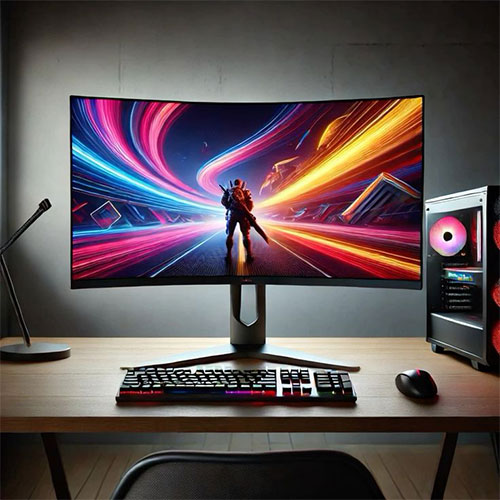
How Much Refresh Rate Do You Need?
Refresh rate measures how many times the monitor updates its image every second.
A 60Hz screen can refresh up to 60 times per second. A 144Hz monitor can refresh up to 144 times per second, while 240Hz and 360Hz displays are designed for much higher frame-rate gaming.
Higher refresh rates make images appear smoother and can improve responsiveness in:
- Competitive shooters
- Racing games
- Battle royale titles
- Sports games
- Fast games with frequent camera movement
60Hz to 100Hz
This range is suitable for everyday work, entertainment, and slower games. It is not the strongest choice for competitive gaming, but it can be enough for casual users.
120Hz to 144Hz
This is a noticeable upgrade over 60Hz and provides a strong experience for many PC and console players.
165Hz to 180Hz
This range offers a good balance for modern gaming. It suits players who want smoother motion without paying for an extreme esports monitor.
240Hz
A 240Hz monitor can benefit competitive players with a powerful PC capable of producing high frame rates.
360Hz and Above
These screens mainly target serious esports players. Most general users will receive better value from a lower refresh rate combined with higher resolution or better image quality.
The best gaming monitors are therefore not always the fastest available. A 165Hz QHD screen may offer a stronger overall experience than a 360Hz Full HD monitor for someone who plays several types of games.
Response Time and Motion Clarity
Response time measures how quickly a pixel changes from one color to another. A lower response time can reduce ghosting and visible blur during fast movement.
Gaming monitor listings may advertise:
- 5ms
- 4ms
- 2ms
- 1ms
- 0.5ms
- 0.03ms on selected OLED screens
These figures are not always measured in the same way. Some monitors reach their lowest claimed response time only through an aggressive overdrive setting, which may create inverse ghosting or other visual artifacts.
For most buyers, a well-performing monitor between 1ms and 5ms is sufficient. Real motion performance, panel quality, and overdrive behavior matter more than the smallest number shown in the specifications.
Match the Resolution to the Graphics Card
Resolution controls the number of pixels displayed on the screen. A higher resolution provides more detail but also creates more work for the graphics card.
Full HD: 1920 × 1080
Full HD remains a practical option for:
- Budget gaming PCs
- Competitive games
- 24-inch monitors
- Older or entry-level graphics cards
- Users prioritizing higher frame rates
It is easier for a computer to produce high frame rates at Full HD than at QHD or 4K.
QHD: 2560 × 1440
QHD is often the strongest balance for a 27-inch gaming monitor. It provides a sharper image than Full HD without requiring as much graphics power as 4K.
It works well for:
- Mid-range and high-end gaming PCs
- Gaming and productivity
- 27- to 32-inch monitors
- Players who want both detail and speed
4K: 3840 × 2160
4K provides much greater image detail, but it requires a stronger graphics card, especially at high settings and refresh rates.
It is suitable for:
- Premium gaming systems
- 27- to 32-inch screens
- Console gaming
- Creative work
- Visually detailed single-player games
The Gaming PC vs. Standard Computers guide can help buyers understand how the graphics card and other hardware affect the suitable monitor resolution.
IPS, VA, TN, OLED, or QD-OLED?
Panel technology affects color, contrast, viewing angles, motion performance, and price.
IPS Panels
IPS monitors usually provide wide viewing angles and consistent colors.
They are suitable for:
- General gaming
- Gaming and office work
- Design and content creation
- Multi-user viewing
- Multi-monitor setups
Modern fast IPS panels can also offer high refresh rates and low response times.
VA Panels
VA monitors normally provide stronger contrast and deeper blacks than typical IPS screens.
They can be a good option for:
- Dark-room gaming
- Story-driven games
- Curved screens
- Users who value contrast and immersion
Some VA models may show more dark-level smearing during fast movement, so the exact model still matters.
TN Panels
TN panels became popular for esports because of their speed and lower cost.
They may still suit users who prioritize responsiveness over viewing angles and color quality. However, fast IPS and OLED panels now offer stronger alternatives in many price categories.
OLED and QD-OLED Panels
OLED and QD-OLED screens provide:
- Deep blacks
- Strong contrast
- Vibrant colors
- Extremely fast response times
- Excellent motion clarity
They can deliver premium gaming quality, but they usually cost more. Buyers should also review warranty coverage and manufacturer guidance regarding static images and panel care.
Adaptive Sync, FreeSync, and G-SYNC
Screen tearing can occur when the graphics card and monitor display frames at different rates.
Adaptive sync allows the monitor to adjust its refresh rate to match the output of the graphics card. Common technologies include:
- AMD FreeSync
- AMD FreeSync Premium
- NVIDIA G-SYNC
- G-SYNC Compatible
- VESA AdaptiveSync
The best gaming monitors should support a technology compatible with the graphics card and the selected connection.
Adaptive sync can reduce:
- Screen tearing
- Stuttering
- Uneven motion
- Sudden changes in smoothness
Always check the supported refresh-rate range, because adaptive sync may only work within specific limits.
Choose the Right Screen Size
A larger display is not always better. Screen size should match the resolution, desk depth, and normal viewing distance.
24 Inches
A 24-inch monitor works well for:
- Full HD gaming
- Competitive players
- Smaller desks
- Users who want to see the full screen without excessive eye movement
27 Inches
A 27-inch display is one of the most flexible sizes.
It works well with:
- Full HD at a lower budget
- QHD for better sharpness
- 4K for high detail
- Gaming and office use
QHD is often the most balanced resolution for this size.
32 Inches
A 32-inch monitor provides a more immersive experience but requires more desk space.
QHD or 4K is usually more suitable than Full HD because lower pixel density becomes easier to notice on a larger display.
Ultrawide Monitors
A 34-inch ultrawide monitor can provide:
- A wider field of view in supported games
- More space for multitasking
- Better immersion in racing or simulation games
- Room for several work windows
Not every game supports ultrawide resolutions correctly, so compatibility should be checked.
The Computer Monitor in Egypt guide provides a broader comparison of screen sizes, resolutions, panels, and ports.
Curved or Flat Gaming Monitor?
Curved screens can feel more immersive on large and ultrawide monitors. The curve brings the edges closer to the viewer and can make a wide screen easier to view from the center.
A curved monitor may suit:
- Racing games
- Flight simulators
- Open-world games
- Ultrawide setups
- Single-user gaming desks
A flat monitor may be better for:
- Competitive gaming
- Graphic design
- Multi-monitor setups
- Shared viewing
- Smaller screen sizes
The curve should not be treated as proof of higher quality. Refresh rate, panel performance, resolution, response behavior, and connectivity remain more important.
What Is a Dell Touch Screen Computer?
The phrase Dell touch screen computer may describe:
- A Dell All-in-One desktop with a built-in touchscreen
- A separate touchscreen monitor connected to another computer
The difference is important.
A touchscreen monitor is only a display and input device. It still needs a separate desktop or laptop.
A Dell All-in-One combines the computer components and the screen into a single unit. This creates a cleaner setup with fewer cables and less desk clutter.
Buyers can explore Dell desktop computers to compare All-in-One systems, standard desktops, monitors, and related products.
Is a Dell Touch Screen Computer Good for Gaming?
A Dell touch screen computer is usually designed for productivity, communication, education, reception work, and general entertainment rather than high-performance gaming.
A current or recent Dell All-in-One may include:
- A 23.8- or 27-inch display
- Intel Core or Core Ultra processor
- Integrated or selected dedicated graphics
- Built-in webcam
- Speakers
- Wi-Fi and Bluetooth
- Touch support on selected configurations
A Dell Inspiron 5410 All-in-One configuration may include a 23.8-inch Full HD touchscreen, Intel Core i5 processor, 8GB RAM, HDD storage, and an SSD.
The Dell Inspiron 5410 All-in-One may suit offices, reception areas, and shared workspaces. However, it should not be compared directly with the best gaming monitors, because it is a complete computer rather than a separate gaming display.
Choose a Dell Touch Screen Computer When:
- Desk space is limited
- Fewer cables are preferred
- Touch input supports the workflow
- The system is used for education or reception
- A built-in webcam and speakers are useful
- Gaming is light or secondary
Choose a Separate Gaming Monitor When:
- High refresh rates are important
- The computer has a dedicated graphics card
- The monitor may be upgraded independently
- Competitive gaming is a priority
- Multiple screens may be added
- Adaptive sync and low response time are needed
A Dell touch screen computer can run games supported by its hardware, but touch input does not improve traditional keyboard, mouse, or controller gaming.
Browse Desktops to compare standard desktop towers and All-in-One systems.
Computer Screen Egypt Prices and Examples
Anyone researching computer screen Egypt prices will find major differences between office displays, smart monitors, and gaming screens.
| Screen Type | Typical Use | Main Specifications |
|---|---|---|
| Basic office monitor | Documents, browsing, accounting | 18.5–24 inches, Full HD or lower, 60–100Hz |
| Productivity IPS monitor | Office work and multitasking | 23.8–27 inches, Full HD or QHD, adjustable stand |
| Budget gaming monitor | Entry-level gaming | 24 inches, Full HD, 120–180Hz |
| Mid-range gaming monitor | General modern gaming | 27 inches, QHD, 144–180Hz |
| Premium gaming monitor | High-end gaming | QHD or 4K, 240Hz+, OLED or fast IPS |
| Smart monitor | Streaming and productivity | Built-in applications, Wi-Fi, remote control |
Recent Hardware Egypt listings have included models such as:
- Dell E1920H 18.5-inch office monitor
- Dell P2419H 23.8-inch Full HD IPS monitor
- Samsung 32-inch curved QHD gaming monitor
- Samsung 32-inch 4K smart monitor
The Dell 24 Inch Monitor – P2419H includes an IPS panel, Full HD resolution, DisplayPort, HDMI, VGA, USB connectivity, and a 60Hz refresh rate. It is better suited to productivity than competitive gaming.
A computer screen Egypt comparison should always use the current product page because older prices and sold-out listings may no longer reflect available stock.
Browse computer screens for office-oriented displays or explore the wider Monitors range.
Check the Ports Before Buying
The computer and monitor must support the same ports and performance modes.
Common display connections include:
- HDMI
- DisplayPort
- USB-C
- VGA on older monitors
- USB hub connections
- Audio output
DisplayPort
DisplayPort is common in PC gaming setups. It can support high resolutions, high refresh rates, and adaptive sync on compatible hardware.
HDMI
HDMI is widely used across desktops, laptops, and consoles.
Buyers seeking high-refresh 4K console gaming should check the exact HDMI version and supported output.
USB-C
USB-C may support video, data, and charging. However, not every USB-C port supports all three functions.
A monitor advertised at 240Hz will not automatically run at 240Hz. The graphics card, cable, port version, resolution, monitor settings, and operating system must all support that mode.
Build a Balanced Gaming Setup
The screen is only one part of the gaming experience.
A balanced setup may also include:
- A capable gaming computer
- Responsive keyboard
- Accurate gaming mouse
- Suitable mouse pad
- Headset or speakers
- Comfortable desk and chair
- Stable power protection
- Correct display cables
Explore mouse and keyboard options when building a responsive setup.
For sound and communication, compare Headphones & Speakers.
Cables, storage, adapters, and other peripherals can be found under Computer Accessories.
Common Monitor-Buying Mistakes
Choosing the Highest Refresh Rate Automatically
A very high refresh rate may provide little value if the graphics card cannot produce enough frames.
Buying 4K for a Weak Gaming PC
A higher resolution creates a heavier graphics workload. Full HD or QHD may provide smoother gameplay.
Ignoring the Panel Type
Two monitors with the same refresh rate and resolution can have very different contrast, color, viewing angles, and motion performance.
Comparing Advertised Response Time Only
The lowest advertised response time may require a setting that creates visual artifacts.
Confusing a Touchscreen Computer With a Gaming Monitor
A Dell touchscreen computer includes the computer and display in one unit. A gaming monitor is a separate display optimized for speed and image performance.
Buying a Large Full HD Monitor
Full HD may look less sharp on a 32-inch screen at normal desk distance.
Ignoring Stand Adjustment
Height, tilt, swivel, and pivot adjustment can improve comfort during long sessions.
Forgetting the Available Ports
The monitor may not reach its maximum refresh rate or resolution through every connection.
Checking the Screen Without Checking the Computer
The best gaming monitors need graphics hardware capable of supporting their resolution and speed.
Gaming Monitor Buying Checklist
Before purchasing, confirm:
- Screen size
- Native resolution
- Maximum refresh rate
- Response performance
- Panel type
- Adaptive-sync support
- Graphics-card compatibility
- HDMI version
- DisplayPort version
- HDR capability
- Color performance
- Brightness
- Curved or flat design
- Stand adjustment
- VESA mounting support
- Built-in speakers if needed
- Warranty
- Return policy
- Dead-pixel policy
- Current stock
- Final price
Choose the Screen Around the Real Use
The best gaming monitors combine the right refresh rate, resolution, panel, response performance, adaptive sync, and ports for the computer that will drive them.
A competitive player may prefer a fast Full HD or QHD screen. Someone who plays cinematic games may choose a larger QHD, 4K, curved, or OLED monitor. A user combining gaming with creative work may also need stronger color accuracy.
A Dell touchscreen computer is a different type of solution. It provides an integrated, space-saving setup that can suit offices, education, reception areas, and shared workspaces. It should not be selected only because touchscreen functionality sounds useful.
When comparing computer screen Egypt options, start with the intended use and available graphics hardware. Then compare the exact model, panel, resolution, refresh rate, ports, warranty, and current stock.
Explore available Dell desktop computers or compare current monitor categories before making the final decision.
FAQs: Gaming Monitors and Touch Screens
What Are the Best Gaming Monitors for Most Players?
The best gaming monitors for most users are 24- to 27-inch Full HD or QHD screens with a 144Hz–180Hz refresh rate, low response time, and adaptive sync.
The final choice should match the graphics card and the types of games being played
Is 144Hz Enough for Gaming?
Yes. A 144Hz monitor provides a major improvement over 60Hz and is enough for many casual and competitive users.
Is QHD Better Than Full HD?
QHD provides a sharper image, especially on a 27-inch screen. However, it requires more graphics power.
Full HD may provide higher frame rates on budget hardware.
Should I Buy IPS or VA?
Choose IPS for balanced colors, wide viewing angles, and strong general gaming performance.
Choose VA when deeper blacks and stronger contrast are more important.
Is OLED Worth It for Gaming?
OLED can provide excellent contrast and very fast response times. However, it normally costs more.
Review brightness, warranty, static-image guidance, and intended use before buying.