


Computer Monitors Buying Guide: Features, Types & Prices Explained
Computer Monitors Buying Guide: Features, Types & Prices Explained
From the past years, computers are known as one of the main components in any office setups. It also continued till nowadays in many offices and in different forms such as the laptops. It holds an important role in defining a lot of business systems. One of its essential parts is the Computer Monitors. In this article, we will talk about them in detail from every aspect.
What Is a Computer Monitor?
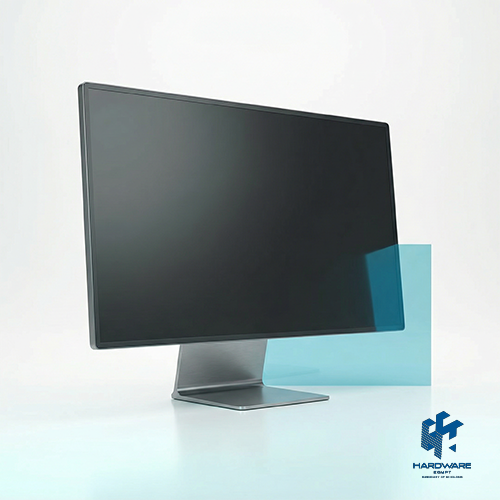
Computer Monitors are the screens that show everything your computer is doing in front of you. It can be many activities such as: typing a document, watching a movie, designing graphics, or browsing the web. Computer Monitors turn signals into images you can actually see on the screen.
Role in a Computer Setup
- Visual Output: They show every visual thing in front of you on the screen.
- Productivity Boost: A larger monitor size can make work easier and more comfortable.
- Better Experience: Good resolution and color quality improve work.
- Reduced Eye Strain: Modern ones are built with features that help protect your eyes during long hours.
Types of Computer Monitors
LED vs LCD:
LCD (Liquid Crystal Display):
use liquid crystals to create and show images. They were the standard for many years and are still used till today.
Pros:
- Affordable
- Reliable
- Good image quality
Cons:
- Slightly thicker
- is not efficient in energy as the new models.
LED (Light Emitting Diode)
are a type of LCD monitor, but they use LED backlighting instead of traditional fluorescent lighting.
Pros:
- Brighter screens
- Better contrast
- Efficient in energy
- Has a slim design.
IPS vs VA vs TN Panels
IPS (In-Plane Switching)
Shows the colours rich and accurate and views in a wide space.
Suitable for:
- Graphic designers
- Video editors
- Content creators
VA (Vertical Alignment)
Is Known for its strong contrast in colours and deep blacks.
Best for:
- Watching movies
- General office use
- Mixed usage
TN (Twisted Nematic)
Built mainly for speed.
Best for:
- Games that have many competitions.
Curved vs Flat Computer Monitors
Flat Monitors
The traditional choice and work well in every office.
Best for:
- Office setups
- Standard daily use
- Setups that have a low budget.
Curved Computer Monitors:
Designed to match the natural curve of your eyes.
Best for:
- More deep experience
- Reduced eye movement across large screens
- Better for gaming and multitasking.
Ultrawide Monitors:
Has 21:9 or wider ratios instead of the standard ones 16:9 ratio.
Why it is popular:
- More screen space without needing two monitors.
- Perfect for video editing timelines.
- Great for multitasking (many windows side by side).
- Deep gaming experience.
Choosing the Right Computer Monitor Size
22–24 Inch (Perfect for Office Use):
If you mainly use your computer for emails, Spreadsheets, Browsing, Basic office work.
Why it is suitable:
- Comfortable for small desks
- Easy on the eyes
- Budget-friendly
- You do not need to move your head too much
27 Inch (Balanced Performance)
This is one of the most popular sizes. It has:
- More screen space
- Better multitasking
- Comfortable viewing for work and entertainment
And suitable if you:
- Split your screen between apps
- Edit photos occasionally
- Watch videos
- Want a clean but powerful setup.
32+ Inch (Design & Gaming):
32-inch and larger Computer Monitors are great for:
- Graphic design
- Video editing
- Gaming
Its benefits:
- Very big workspace
- Easier timeline editing
- More detailed visuals
- A more cinematic feel
Recommended Viewing Distance
- 22–24 inch: Sit about 50–60 cm away
- 27 inch: Around 60–80 cm away
- 32+ inch: 80 cm or more
You should be able to see the entire screen without turning your head constantly. Your eyes should move naturally.
A Small Tip:
As modern Computer Monitors are designed for comfort, the top of your monitor should be at or slightly below eye level. This helps reduce neck strain during long hours of use.
Essential Features to Look For
HDMI & DisplayPort:
- HDMI: is the most common port. It carries both video and audio through one cable. So it is simple and convenient.
- DisplayPort: is often preferred for higher resolutions and refresh rates and gaming setups.
Always check what ports your computer supports before buying.
Built-in Speakers:
Some Computer Monitors come with built-in speakers. They are useful for office environments, video calls and saving desk space
If you do not want extra cables or external speakers, then it can be very convenient.
Adjustable Stand:
This is a feature many people ignore. It allows you to change the height, tilt the screen, turn it left and right and rotate vertically (on some models).
It is important because when you are comfortable, you will be productive.
Blue Light Filter & Eye-Care Technology:
If you spend hours in front of your screen, this is a must have feature to have. Modern Computer Monitors often include:
- Blue light reduction
- Flicker-free technology
- Anti-reflection screen
Blue light can cause eye strain, headaches, and sleep problems. Eye-care technology helps reduce fatigue, especially if you work late or study for long hours.
Budget vs Premium Computer Monitors
-
Budget Monitors:
These are great if you want good performance without paying a high price.
Its Features:
- Standard resolution, often 1080p
- Good pixel quality and viewing experience
- Basic refresh rates, around 60–75Hz
- Simpler stand and no extra features
Suitable for:
- Everyday browsing
- Office or school work
- Simple videos and apps
-
Premium Monitors:
Are built for people who want extra performance and features.
Its Features:
- Higher resolution, 1440p or 4K
- Better panel tech
- Wider color range and accuracy
- Faster refresh rates
- Extra connections (DisplayPort, USB‑C)
- High build and ergonomics
Long‑Term Value vs The Cost
Budget monitors :
- Lower costs
- Covers everyday needs
- Perfect for students and general users
Premium monitors:
- Higher in cost
- Faster refresh, better colors, more ports
- Extra eye comfort, durable build
- Often lasts longer.
Final Buying Checklist
Key Things to know Before Buying:
Screen Size & Resolution:
-
- Measure how far is the distance between you and the monitor.
- Choose a resolution based on what you usually do: 1080p for everyday tasks, 1440p or 4K for gaming and design.
Panel Type & Refresh Rate:
-
- IPS panels for rich colors and wide view.
- VA panels for deep contrast.
- TN panels for fast response times.
- Higher refresh rates (120–240Hz) if you are gaming.
Essential Features:
-
- HDMI or DisplayPort
- Built-in speakers if you want convenience.
- Adjustable stands
- Eye-care technology like blue light filters
Budget or Premium:
-
- If you want to save money, choose a budget monitor. If you want to buy one with long-term value, choose a premium model.
- Consider how long you plan to use the monitor and what features you really need.
Warranty & After-Sales Support:
- Check the warranty time, usually 1 to 3 years of coverage
- Know what is included in it.
- Make sure customer support is easy to reach in case of the monitor’s damage.
In the end, Computer Monitor is about creating a setup that is comfortable, productive for both life and office work. By following this guide, you will have surely known exactly what to look for and add the features you want for your needs.
Want to focus on the best computer monitor for you? Visit our website and buy your own now!